Purchase Order 1
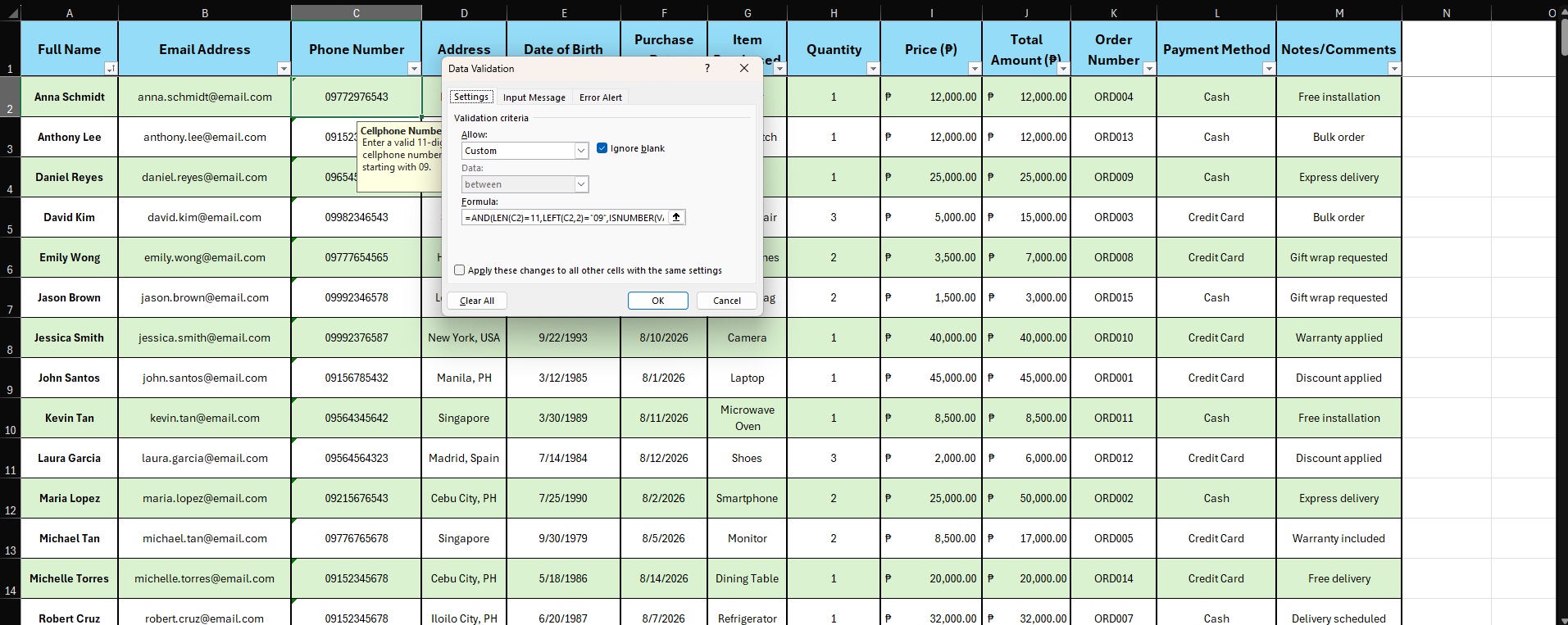
Formatting: Format the spreadsheet for readability. Use bold headings, adjust column widths, and apply text wrapping where necessary. Use data validation to ensure correct data formats (e.g., dates, phone numbers).
Action: I used bold headings and I adjusted the column widths and used data validation to ensure correct data formats. I encountered some issues and resolved them.
Issues Encountered & Fixes:
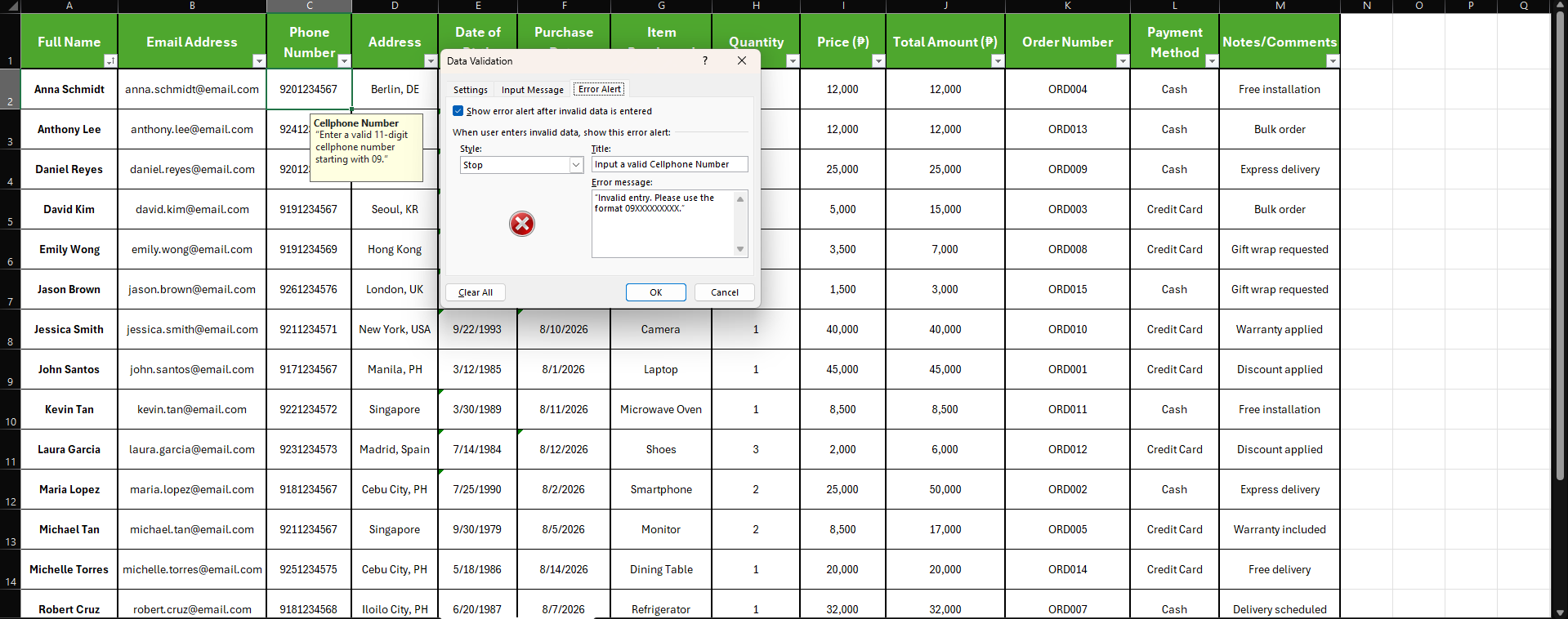
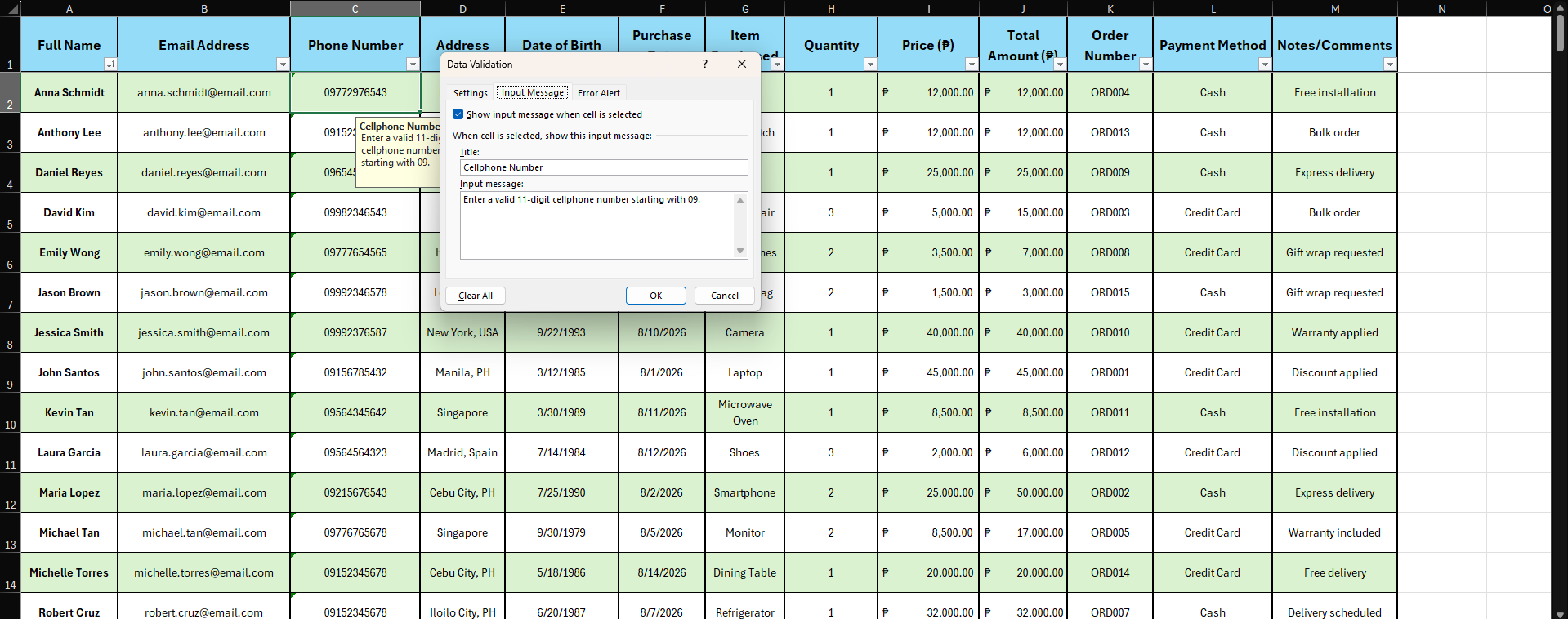
- Phone number formatting — Original data had phone numbers stored as plain numbers, which dropped the leading "0" (e.g., 9772976543 instead of 09772976543). Fixed by converting the column to text format and restoring the leading zero.
- Phone number validation — Added a custom data validation rule requiring exactly 11 digits starting with "09," with a clear error message, applied across a buffered range (not just existing rows) so future entries are checked automatically.
- Date validation — Added rules for Date of Birth (must be a real past date, not today/future) and Purchase Date (must fall within a sensible range), each with its own error message.
- Sorting & filtering — Sorted records alphabetically by Full Name and confirmed the sheet's existing Excel Table already provided filter dropdowns.
- Duplicate AutoFilter conflict — When adding filtering, a second, redundant AutoFilter was accidentally layered on top of the sheet's existing Table filter, which can trigger Excel errors/repair prompts. Removed the duplicate so only one filter definition remained.
- Leftover broken validation rule — The original file had a stray, buggy validation rule (referencing the wrong cell) sitting on the header row and an unrelated empty range. Removed it since it served no purpose.
- "Number Stored as Text" warning — Because phone numbers are intentionally stored as text (to preserve the leading 0), Excel flags this with a small warning triangle. This is cosmetic, not an actual error — suppressed at the file level, with a manual fallback (select range → Ignore Error) if it still appears.
Takeaway: Most of the visible "errors" traced back to normal Excel behavior (text-formatted numbers) or an artifact from combining multiple edits (duplicate filter definitions) — not corrupted or incorrect data.